
คู่มือการสอน
ระบบยืนยันชั่วโมงสอนและการใช้งาน Zoom
การยืนยันชั่วโมงสอน
สำคัญ:
ต้องกด “Confirm” ทันทีทุกครั้งหลังจากมีการสอนเสร็จแล้ว เพื่อ:
ตัดชั่วโมงสอนคงเหลือให้อัปเดตล่าสุด
ทำ invoice ในกรณีนักเรียนต้องการชำระค่าเรียนหรือจองตารางเรียนเพิ่มเติม
ห้าม! กด “Confirm” ก่อนสอนเด็ดขาด เนื่องจาก:
บางครั้งอาจจะมีการเปลี่ยนแปลงตารางเรียนได้ เช่น นักเรียนมีการแจ้งยกเลิกฉุกเฉิน เป็นต้น
หากลืมกด “Confirm” ภายในวัน (หลังเที่ยงคืนไปแล้ว)
ปุ่มกด “Confirm” จะหายไปต้องคีย์เข้าระบบแบบ Manual เอง
หากต้องการข้อมูลเพิ่มเติม กรุณาติดต่อเจ้าหน้าที่ทางไลน์ @aims
การสอนออนไลน์ผ่าน Zoom
ข้อมูลการเข้าสู่ระบบ Zoom
Email: aims.online**@****.com
Password: ****
ครั้งแรกในการสอนผ่าน Zoom หรือมีการเปลี่ยนอุปกรณ์ในการใช้งาน
สำคัญมาก
เตรียมตัวล่วงหน้า: กรุณา Log in ก่อนเวลาสอนอย่างน้อย 20 นาที
Verification Code: ครั้งแรกในการล็อกอินเข้า Zoom หรือมีการเปลี่ยนอุปกรณ์การใช้ งาน จะมีการส่ง verification code สามารถแจ้งขอรหัสได้ทางไลน์ @aims
วิธีสร้างห้องเรียน Zoom
หลังจาก Log in เข้า Zoom เรียบร้อยแล้ว
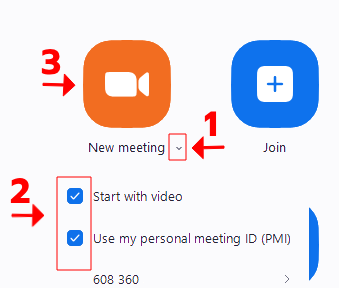
1. คลิกปุ่มลูกศรลงเพื่อขยายข้อความ (ข้างข้อความ “New meeting”)
2. คลิกเลือกทั้งหมด ” Start with video” และ “Use my personal meeting ID (PMI)“
3. คลิกปุ่ม “New meeting” เพื่อสร้างห้องเรียน
Teaching Guide
Teaching Hours Confirmation System and Zoom Usage
Teaching Hours Confirmation
IMPORTANT:
You must click “Confirm” immediately every time after completing a class to:
Update the remaining teaching hours to the latest status.
Generate invoices when students need to pay tuition fees or book additional class schedules.
NEVER! Click “Confirm” before teaching under any circumstances because:
Sometimes, there might be schedule changes, such as students giving emergency cancellation notices, etc.
If you forget to click “Confirm” within the day (after midnight):
The “Confirm” button will disappear, and you’ll need to manually enter the data into the system yourself.
For more information, please contact staff via Line @aims.
Online Teaching via Zoom
Zoom Login Information
Email: aims.online**@****.com
Password: ****
For first-time teaching through Zoom or when changing devices
Very Important
Prepare in Advance: Please log in at least 20 minutes before teaching time
Verification Code: For first-time login to Zoom or when changing devices, a verification code will be sent. You can request the code via Line @aims
How to Create Zoom Meeting
After successfully logging in to Zoom,
1. Click the down arrow button to expand the options (next to the “New meeting” text).
2. Select both “Start with video” and “Use my personal meeting ID (PMI)“.
3. Click the “New meeting” button to create the classroom.